It's almost embarrassing to write about this ancient (several decades) knowledge, but here it goes. All standard Windows applications recognize a set of keyboard shortcut keys assigned to very frequently used actions, such as Open, Save, Print, Select All, Copy, Cut, Paste, Close, Find, Undo... I won't list them here: just glance at the top of any screen and open the File or Edit menu options to see them.
Watching somebody stubbornly continue to use the mouse to, for example, select/copy/paste via the Edit menu (or even via mouse right-clicks) always saddens me. It may be done very fast and efficiently, and thus be impressive, but soon becomes a grotesque robot-like activity. A more dignified approach is to learn which tools are best in which situations and use them at the right time. But, if you never took the time to learn the alternatives, you fall back on what had been imprinted upon your first encounter with the computer. Almost always, beginners are forced to rely on the mouse, while keyboard techniques are dismissed as arcane, nerdy stuff they are not yet ready for. The result is that the mouse habit becomes so strong that it's impossible to overcome, even when reason dictates otherwise. It simply becomes too late to retrain the mind, which resists unlearning if it can be avoided.
I could be mean and call this minor pathology "rat-addiction", but don't want to offend those who simply are in no hurry and just want to click their lives away without stress and worry. I understand you. I have less understanding for computer professionals whom I see troubleshooting co-workers' PCs without bothering to learn faster ways of doing long, frequent routine operations.
Practical example: Just because something is available by clicking Start, Programs, Accessories, Notepad, does not mean that you have to navigate there using the mouse and your eyes every time. What if the mouse is broken or there is a driver problem? A keyboard is always available and usuall works -- it's hard to imagine any troubleshooting or work activity without one -- so why not learn to reach the above panel using it?
The above navigation can be achieved via: Winkey, P[rograms], A[ccessories], Enter, N[otepad]. Once learned, it's hard to forget and go back to the mouse. Try it and note that you don't even have to look anymore! Of course, items can be moved around and renamed by Microsoft, but nothings stops you from coming up with your own names and moving items where you please.
Showing posts with label mouse. Show all posts
Showing posts with label mouse. Show all posts
Saturday, March 13, 2010


Wednesday, March 3, 2010
Your enemy, The Mouse
The mouse becomes your enemy when you use it exclusively even for the most keyboard-oriented functions. Consider the login dialog that you may encounter several times on a typical day. You start by clicking on the Username field and typing in your name. Then, you click on the Password field and fill that in as well using the keyboard. Finally, you click on OK. You are going back and forth between two input devices, instead of doing the following without lifting your hands from the keyboard: type in your name, hit Tab, type in your password, Enter. This general TAB-navigation works in all forms, yet it's not used by most people.
Here is a typical web login session that also does not require the mouse. Note that there are a total of four objects to visit and do something about. The tricky one is the "Keep me signed in" check box. In all GUI environments, the SPACE bar is used to check/uncheck an option. If you want to leave the state as it is (unchecked in this case), just Tab to the next field, else hit SPACE to toggle the state.
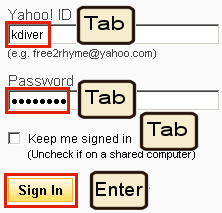
You may be wondering why the Enter key worked here, making clicking on Sing In superflous. The answer is that well-designed Windows (and web) dialog boxes always have one, and only one button shown in bold. Most of the time the button says OK, Send, Yes, Sign In, or some other positive action. This visual cue is telling the user that the button in bold is associated with the Enter key, which is also something affirmative. Learn to observe dialog boxes and you will soon learn how simple and logical this is.
The negative action (buttons that say No, Discard or Cancel), as you might have guessed, is strongly associated with the Escape key.
It's not really the poor mouse's fault, but our habits and lazyness that prevent us from learning and growing if not forced to do so. Remember: all good GUIs have been designed to work without a mouse efficiently, and not only in an emergency. One trick I used to teach my kids to realize that the keyboard offers more than just typing in text, was to remove the mouse and let them work without it for a while. Afterwards, they no longer resisted learning keyboard shortcuts and understood what the underlined letters in menus were for, and why some buttons are shown in bold.
Homework: force yourself to fill in dialog boxes and dismiss popup without using the mouse. Do this for one full day and afterwards you will feel pretty foolish when reaching for the mouse to click on OK or Cancel instead of hitting their Enter or Escape keyboard equivalents. Of course, there are exceptions: when your hand is already on the mouse, then switching back and forth is extra work that could be avoided.
Some of your best keyboard friends are: Enter, Escape, Tab, SPACE
Here is a typical web login session that also does not require the mouse. Note that there are a total of four objects to visit and do something about. The tricky one is the "Keep me signed in" check box. In all GUI environments, the SPACE bar is used to check/uncheck an option. If you want to leave the state as it is (unchecked in this case), just Tab to the next field, else hit SPACE to toggle the state.

You may be wondering why the Enter key worked here, making clicking on Sing In superflous. The answer is that well-designed Windows (and web) dialog boxes always have one, and only one button shown in bold. Most of the time the button says OK, Send, Yes, Sign In, or some other positive action. This visual cue is telling the user that the button in bold is associated with the Enter key, which is also something affirmative. Learn to observe dialog boxes and you will soon learn how simple and logical this is.
The negative action (buttons that say No, Discard or Cancel), as you might have guessed, is strongly associated with the Escape key.
It's not really the poor mouse's fault, but our habits and lazyness that prevent us from learning and growing if not forced to do so. Remember: all good GUIs have been designed to work without a mouse efficiently, and not only in an emergency. One trick I used to teach my kids to realize that the keyboard offers more than just typing in text, was to remove the mouse and let them work without it for a while. Afterwards, they no longer resisted learning keyboard shortcuts and understood what the underlined letters in menus were for, and why some buttons are shown in bold.
Homework: force yourself to fill in dialog boxes and dismiss popup without using the mouse. Do this for one full day and afterwards you will feel pretty foolish when reaching for the mouse to click on OK or Cancel instead of hitting their Enter or Escape keyboard equivalents. Of course, there are exceptions: when your hand is already on the mouse, then switching back and forth is extra work that could be avoided.
Some of your best keyboard friends are: Enter, Escape, Tab, SPACE
Monday, September 18, 2006
What is the best PC keyboard to use?
The best keyboard is the full-size desktop one!
I use several laptops, but both at home and at work, I attach a USB keyboard. It may be awkward in meetings, but if there is a lot to type or demo, I would do it. Don't compromise your efficiency, arm yourself with the best instrument you can get your hands, literally, on. Imagine a pianist like Glenn Gould or a guitarist like Santana doing a concert on a third-rate instrument somebody just threw onto the stage!
Yet, people spend countless hours on inferior laptop keyboards and its inferior pointing device, the touchpad, just because it is possible to do so.
From my observation, touchpad manipulation and navigation seems about 10 times less efficient than the mouse. For one thing, mouse movements tend to be fluid, and one does not struggle so much when positioning the cursor until one is ready to click. Of course, both the touchpad and the mouse require that the eyes are glued to the screen, which keyboard action does not (but that's another topic).
By all means, continue to do use laptops on the plane or on a park bench, but for serious work (development, extensive writing), get a real keyboard and mouse.
I use several laptops, but both at home and at work, I attach a USB keyboard. It may be awkward in meetings, but if there is a lot to type or demo, I would do it. Don't compromise your efficiency, arm yourself with the best instrument you can get your hands, literally, on. Imagine a pianist like Glenn Gould or a guitarist like Santana doing a concert on a third-rate instrument somebody just threw onto the stage!
Yet, people spend countless hours on inferior laptop keyboards and its inferior pointing device, the touchpad, just because it is possible to do so.
From my observation, touchpad manipulation and navigation seems about 10 times less efficient than the mouse. For one thing, mouse movements tend to be fluid, and one does not struggle so much when positioning the cursor until one is ready to click. Of course, both the touchpad and the mouse require that the eyes are glued to the screen, which keyboard action does not (but that's another topic).
By all means, continue to do use laptops on the plane or on a park bench, but for serious work (development, extensive writing), get a real keyboard and mouse.
Tuesday, July 12, 2005
The keyboard is your friend
The keyboard is not going away, despite mice, tablets, touch-sensitive surfaces, or voice control. Hitting keys or buttons on your personal computer, mobile phone, various gadgets or various remote controls in your living room will remain for quite some time. Get to know them and use them efficiently!
This blog focuses on the desktop PC keyboard and the Windows platform, but general principles apply to all other types of keyboards and human-computer interaction.
Time invested in learning to type properly and memorizing keyboard accelerators pays back immediately in saved time and effort -- if you manage to beat its main enemies: the mouse, laziness, habit...
The new digital generation will spend their lives, literally, pushing virtual or physical buttons as they interact with computers and other digital gadgets.
Humans spend about 1/3 of their lives sleeping, but today millions are probably spending another 1/3 of their lives (8 hours per day) typing and clicking, or touching a surface. Our fingertips are, more than ever, extensions of the brain.
Even if your daily job does not include computers, you probably spend a few hours in the evening surfing the net with your hands on the mouse and the keyboard.
You no longer need to be a professional pianist to realize that you also "practice" long hours daily. But are your keyboard technique and efficiency improving accordingly?
Unfortunately, it's hard to improve on anyone's mouse-clicking skills: for example, you can't click or drag it faster without losing precision and it becoming awkward. You cannot use a mouse in a more "intelligent" way than you actually do, because it's a simple point-and-click action that has no alternative.
On the other hard, when your hands rest on the keyboard, there are always several ways to perform an action, provided you are willing to discover and learn them. Personally, I enjoy learning (and creating) new keystrokes and other shortcuts and see my productivity increase all the time.
This blog focuses on the desktop PC keyboard and the Windows platform, but general principles apply to all other types of keyboards and human-computer interaction.
Time invested in learning to type properly and memorizing keyboard accelerators pays back immediately in saved time and effort -- if you manage to beat its main enemies: the mouse, laziness, habit...
The new digital generation will spend their lives, literally, pushing virtual or physical buttons as they interact with computers and other digital gadgets.
Humans spend about 1/3 of their lives sleeping, but today millions are probably spending another 1/3 of their lives (8 hours per day) typing and clicking, or touching a surface. Our fingertips are, more than ever, extensions of the brain.
Even if your daily job does not include computers, you probably spend a few hours in the evening surfing the net with your hands on the mouse and the keyboard.
You no longer need to be a professional pianist to realize that you also "practice" long hours daily. But are your keyboard technique and efficiency improving accordingly?
Unfortunately, it's hard to improve on anyone's mouse-clicking skills: for example, you can't click or drag it faster without losing precision and it becoming awkward. You cannot use a mouse in a more "intelligent" way than you actually do, because it's a simple point-and-click action that has no alternative.
On the other hard, when your hands rest on the keyboard, there are always several ways to perform an action, provided you are willing to discover and learn them. Personally, I enjoy learning (and creating) new keystrokes and other shortcuts and see my productivity increase all the time.
Subscribe to:
Posts (Atom)

 Posts
Posts

